
Hotkeys You Can Use
In addition to conventional MS-Windows hotkeys (such as Ctrl+P for Print, Ctrl+C for copy image, etc.), you may use the following keys. The usages of these hotkeys are explained in detail in later section of the manual.
Ctrl+A Zoom All
Ctrl+Shift+C Center image around a chosen point
Ctrl+T Turn (rotate) image ON/OFF
Ctrl+S Show
Ctrl+N Show node numbers
Ctrl+D Redraw image
Ctrl+R Render image
Ctrl+Shift+X View X
Ctrl+Shift+Y View Y
Ctrl+Shift+Z View Z
Ctrl+Shift+I View Isometric
Mouse Scroll Zoom In/Out
Ctrl+Mouse Scroll Pan Up/Down
Shift+Mouse Scroll Pan Left/Right
Ctrl+Mouse Left Button+Drag Pan Graphics in Horizontal/ Vertical direction
Mouse Middle Button+Drag Pan Graphics in Horizontal/ Vertical direction
Ctrl+T followed by
Ctrl+Mouse Scroll Rotate in Vertical plane
Shift+Mouse Scroll Rotate in Horizontal plane
Ctrl+Mouse Left Button+Drag Rotate in Horizontal/Vertical plane
Mouse Middle Button+Drag Rotate in Horizontal/Vertical plane
Ctrl+Numpad 8 Increase Symbol size
Ctrl+Numpad 2 Decrease Symbol size
Page Up Zoom in
Page Down Zoom out
F2 Move focus to Layout or List window (wherever the focus was before)
F3 Show/Hide Dots + Numbers
F4 Viewpoint
F5 Previous view
F6 Hide Current Element
F7 Make Transparent
F8 Freeze View
F9 Show All
F10 All Transparent
F11 All Opaque
F12 Show/Hide Selected Elements
In addition to the above short cuts, new functionalities are added to the Mouse Left Button Operation as detailed below starting Version 15.00.
Mouse Left Button Click and Move
Continuous Horizontal/Vertical PAN: When PAN mode is active, clicking and holding the left mouse button will allow continuous horizontal or vertical panning of the view.
Continuous Horizontal/Vertical Rotation: When TURN mode is active, clicking and holding the left mouse button will rotate the view continuously along the horizontal or vertical axis.
Zoom Window: When both PAN and TURN modes are disabled, clicking and holding the left mouse button will enable a zoom window function, allowing the user to zoom in/out on a selected area.
Mouse Middle Button Click and Move (When PAN and TURN Modes are OFF)
One-time Horizontal/Vertical PAN: Clicking and moving the middle mouse button will perform a one-time horizontal or vertical panning of the view when PAN mode is off.
One-time Horizontal/Vertical Rotation: Clicking and moving the middle mouse button will perform a one-time horizontal or vertical rotation of the view when TURN mode is off.
Mouse Middle Button Click and Move (When PAN or TURN Mode is ON)
Sticky Horizontal/Vertical PAN: When either PAN or TURN mode is enabled, clicking and holding the middle mouse button will allow free horizontal or vertical panning of the view. This action remains active until the left mouse button is clicked, acting like a "sticky" operation.
Sticky Horizontal/Vertical Rotation: When either PAN or TURN mode is enabled, clicking and holding the middle mouse button will allow free rotation of the view along the horizontal or vertical axis. This action remains active until the left mouse button is clicked, functioning like a "sticky" operation.
Dynamic Resizing of Window Image
When you resize the Graphics window, CAEPIPE will automatically resize the image proportionately isotropically. Dynamic scaling makes it unnecessary for you to “Zoom All” every time you resize the window.
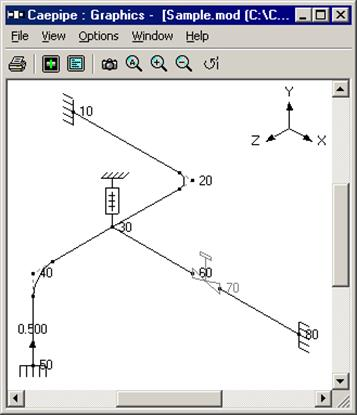
Using Scroll Thumbs
When you want to move or pan the image, simply drag the scroll thumbs in the scrollbar and the image moves accordingly. If you have activated the Turn command (menu View > Turn, or Ctrl+T), then the scroll thumbs when moved using the mouse will rotate the image.
Graphics Synchronization with Open Text Windows
The graphics image has a flashing cursor (such as on an anchor or bend) that always synchronizes with the text window that has the focus. In congested models, the flashing cursor points precisely to the location of the element you are working on by acting as a flashing beacon. Example: Move the highlight in Layout to an anchor. The Graphics and the List windows (if open) automatically show or highlight the same anchor.
Dynamic Updating of Data in All Open windows: Layout, Graphics and List
Example: Delete an Anchor or change a Material name in the List window. The Layout and the Graphics windows are automatically updated immediately, showing the changes. You are not forced to perform edits from any one given window. You can get instant feedback.
Simultaneous Visual Updates of Deflected and Mode Shapes
Simply switch between different load cases (or mode shapes) in the Results window to see the respective deflected/mode shape change too in the Graphics window.