RUNNING CAEPIPE/CAEPIPE 3D+ IN BATCH MODE
Steps to Run CAEPIPE/CAEPIPE 3D+ in Batch Mode
Create the Stress Model
o Use the Layout window to build the stress model.
o Once the model is created, export it to a Model Batch File (MBF) format via Layout Window > File > Export to MBF.
o Alternatively, you can create the MBF file directly using a text editor such as Notepad as detailed under Import MBF above.
Run the Analysis and Output Results in CSV Format
o Use the MBF file as an input argument to the CAEPIPE/CAEPIPE 3D+ executable.
o Assuming a file named “StrModel R0.mbf” is stored in the folder “C:\Stress Models” and CAEPIPE 3D is installed in a folder “C:\Program files (x86)\CAEPIPE3D”, enter the command as shown below in Windows “Command Prompt” with Administrative rights.
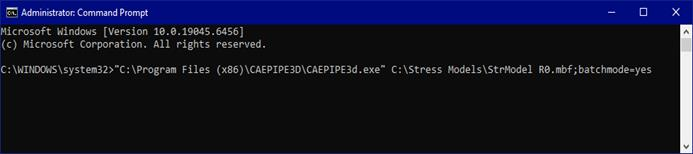
o The results will be output in CSV file format after analysis with name “StrModel R0.csv” and will be stored in the folder where the MBF file is stored (i.e., “C:\Stress Models” for the example given above).
Note:
In the example above, CAEPIPE 3D is installed in a folder with a blank space in its name. As a result, the path "C:\Program Files (x86)\CAEPIPE3D\CAEPIPE3D.exe" is enclosed in quotes.
Batch mode requires two arguments, separated by a semicolon (;). The first argument is the MBF file name, and the second argument is batchmode=yes. It is important to note that NO BLANK SPACES are allowed within the second argument string. Therefore, ensure that the second argument is entered exactly as batchmode=yes, without any spaces before or after or in between batchmode and yes.
The maximum file path length has been increased from 80 to 256 characters, allowing batch run paths to be up to 256 characters long starting CAEPIPE Version 15.00.
Modify and Re-run the Analysis
o Update the MBF file manually or through a script as needed.
o Repeat the above to execute the modified analysis and output results.