Reverse & Paste (Ctrl+Shift+V)
The Reverse & Paste option allows you to reverse a selected portion of the layout from forward to backward mode. For example, in the model shown below, the main run is modeled from Nozzle (Node 5) to an Anchor (Node 50).
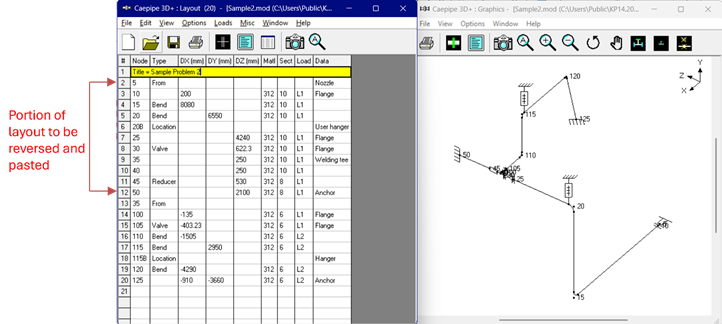
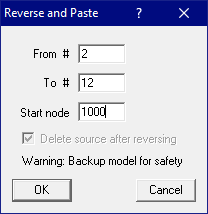
When the Reverse & Paste command is used to reverse this main run by entering the data as shown below, it will create a new layout starting from an Anchor (Node 1000) and ending at a Nozzle (Node 1045, for a node increment of 5 set through Layout Window > Options > Node increment).
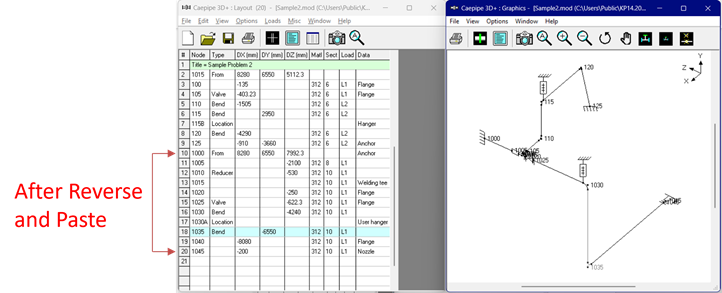
The layout window for the updated model with the reversed layout is given below.
This functionality is supported only when the selected portion of the layout satisfies all of the following requirements:
1. Only one “From” element may exist within the selected range.
2. The selected range must begin with a “From” element and must end at a disconnected node. The disconnected node may be an Anchor, Nozzle, or Free End.
3. The selection must not end with a “Comment” row or a “Hydrotest” load definition row.
4. The reversed layout cannot be pasted:
· at the title row (Row #1), or
· anywhere within the original selected range (i.e., between the specified “From #” and “To #” row numbers).
· Before the “From #” row number.
Note: It is recommended to save a separate copy of the original model before using this feature.
Steps to Use Reverse & Paste
1. Identify the range of rows to be reversed and pasted (for example, rows 2 to 12 in the layout shown below).
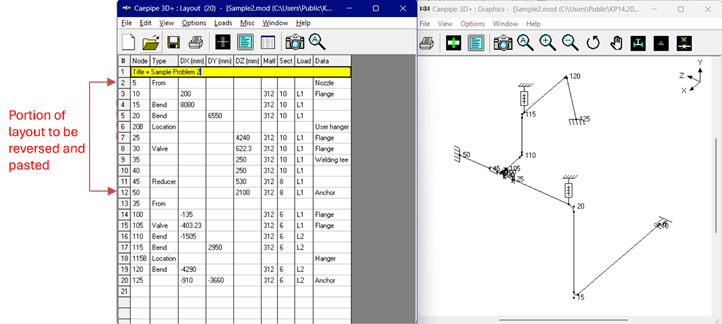
2. Navigate to an empty row (e.g., row 21) and either:
· Press Ctrl + Shift + V, or
· Go to Edit > Reverse & Paste in the layout window.
This will open the Reverse & Paste dialog box, as shown in the figure below.
Inputs in the Reverse & Paste Dialog
-
From # – Enter the row number corresponding to the starting node of the layout portion to be reversed (e.g., 2). This must be a “From” node.
· To # – Enter the row number corresponding to the end node of the layout portion to be reversed (e.g., 12). This node must be disconnected node such as Anchor, Nozzle, or Free End.
-
Start Node – Enter a new node number that does not already exist in the current layout (e.g., 1000). This number will be used as the starting node for the reversed layout segment.
After clicking OK, CAEPIPE will reverse the layout portion between the specified “From #” and “To #” rows, and paste it using the new node numbering starting from the “Start Node” specified in the dialog box.
An example of the reversed and pasted layout is shown in the figure below.